
The quickest way to add subtitles to a video is to let a subtitle generator write them for you. Upload the video, check the text it transcribes, then either burn the subtitles into the video, so they show everywhere it's posted, or download them as a subtitle file (an SRT) and upload it next to the video on YouTube or another platform, so viewers can turn them on and off. You can also type subtitles by hand, but on anything longer than a few seconds that takes far longer.
Burned-in subtitles or a subtitle file?
Decide this first, because it changes what you export.
- Burned-in subtitles (also called hardcoded or open captions) are drawn into the video picture. Every viewer sees them, on every app and in every repost, and you choose the font, colors and animation. They can't be switched off or translated by the platform. Best for TikTok, Instagram Reels, YouTube Shorts, ads and any clip that will be shared around.
- A subtitle file (SRT or VTT, also called closed captions) is a separate text file with the words and their timings. You upload it with the video, and the player shows it in its own plain style. Viewers can turn it on or off, and platforms can translate it. Best for long YouTube videos, courses and video players on your own site. If a platform asks for the other format, our free SRT to VTT and VTT to SRT converters switch between them in your browser.
If you're not sure, burn them in. Most short videos are watched on phones with the sound off, and burned-in subtitles are the only kind every viewer sees.
How to add subtitles to a video automatically
This is how to do it with AutoSubtitles, in your browser, with no account and nothing to install:
- Open autosubtitles.com and click New Video.
- Choose your video. Pick its language or leave it on Auto Detect. MP4, MOV, WebM and most common formats work. Your video stays on your device; only the audio is sent for transcription.
- Check the subtitles. They appear automatically a few seconds after you choose the video. Click any line to fix a word, split a long line or adjust its timing.
- Choose how they look. Open Styles and pick one of 28 caption styles, from plain white subtitles to bold word-by-word highlighting. Then adjust the font, colors, outline, size and position.
- Export. Download the video with the subtitles burned in. On Pro you can also download them as an SRT, VTT or TXT file.
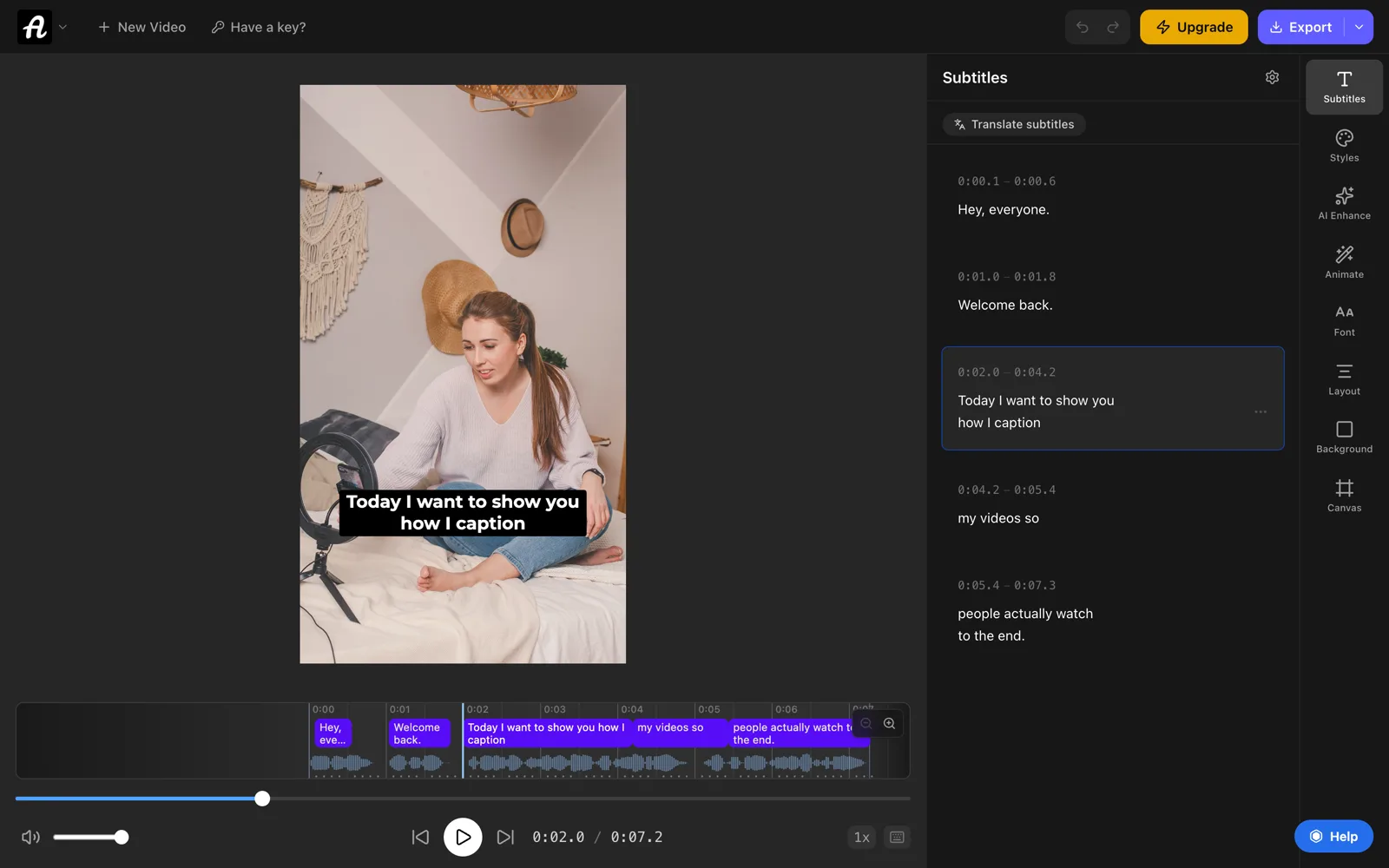
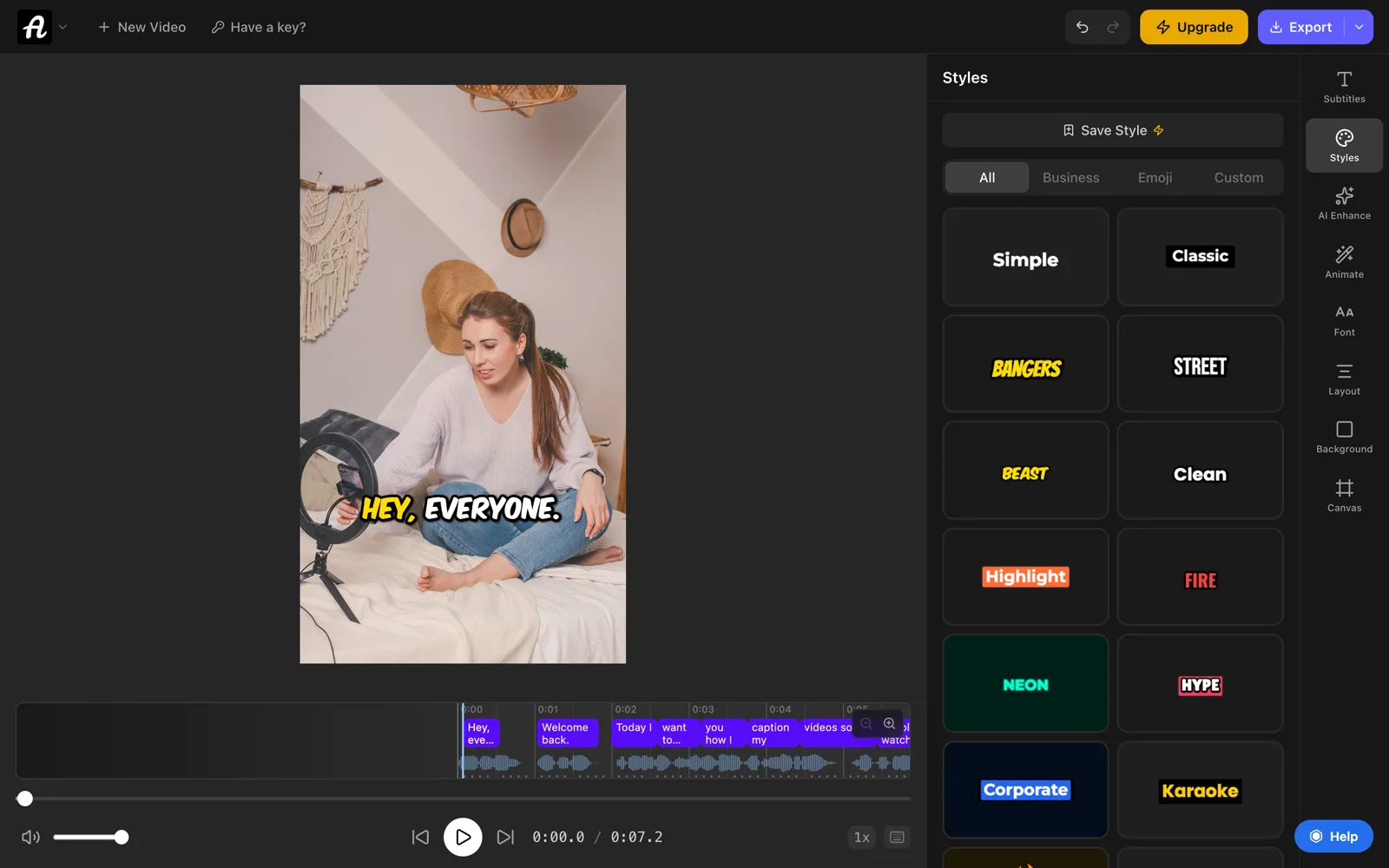
It works the same on a phone: open autosubtitles.com in your phone's browser and choose a video from your camera roll.
The free plan includes every caption style and animation and handles videos up to 10 minutes long. Free exports are up to 720p with a small AutoSubtitles watermark. Pro ($9/month) removes the watermark, exports in HD and 4K, and adds subtitle file downloads and translation. See add subtitles to a video for everything the editor does.
How to add subtitles to a YouTube video
YouTube gives you two options, and you can use both:
- Burned-in: export the video from AutoSubtitles with the subtitles burned in, then upload it to YouTube as usual. This is the usual choice for Shorts.
- A subtitle file: in YouTube Studio, open Subtitles in the left menu and click your video. Add the video's language if YouTube asks for it, then click Add in the Subtitles column, choose Upload file, select With timing, pick your SRT file and click Publish.
YouTube also writes automatic captions for many languages after you upload. They're free but plain, and they often get names and technical words wrong. You fix them in YouTube Studio, line by line. The YouTube subtitle generator page covers both routes in more detail.
How to add subtitles to TikTok and Instagram Reels videos
Both apps have built-in auto captions. They're quick, but they look the same on every video, viewers can hide them, and they don't come with the clip when you post it somewhere else. Burned-in subtitles avoid all three problems. We have step-by-step guides for each app, including where to put the text so the app's buttons don't cover it:
How to add subtitles to a video manually
For a short clip, or when you already have a script, you can write a subtitle file yourself. An SRT file is plain text. Open any text editor and write numbered blocks: the number, the start and end time (hours:minutes:seconds,milliseconds), the text, then a blank line. Or use our free subtitle editor, which plays your video next to the list and keeps the numbers and time format right for you.
1
00:00:01,000 --> 00:00:03,500
Welcome back to the channel.

2
00:00:03,600 --> 00:00:06,200
Here's how to add subtitles.
Save it as plain text with a .srt extension, then:
- On YouTube, upload it in YouTube Studio as described above.
- To watch it locally, give it the same name as the video file (for example
talk.mp4andtalk.srt) and keep both in the same folder. Players such as VLC load it automatically, or you can add it from VLC's Subtitle menu.
If the subtitles show up too early or too late, the free subtitle shifter moves them all at once. Getting the timings right by hand is slow. It's usually faster to generate the subtitles automatically and correct the few words that come out wrong.
Tips for subtitles people can read
- Keep lines short. One or two lines on screen at a time. Netflix's English style guide allows at most 42 characters per line, and on vertical video two to four words at a time reads better.
- Use high contrast. White or yellow text with a dark outline or shadow reads on almost any footage.
- Keep text clear of the edges. Platforms put buttons and descriptions along the bottom and right side of the video.
- Check every name and number. Speech recognition gets most words right but often trips on names, brands and jargon.
- Match the speech. Each line should appear when the words are spoken and stay long enough to read.
Subtitles vs captions: what's the difference?
Strictly, subtitles write down what's said for viewers who can hear the audio but want to read along, often in another language. Captions are meant for viewers who can't hear it, so they also describe sounds, like [music] or [laughs]. Online, most people use the two words for the same thing. Our guide to closed captions vs subtitles explains the difference, and our guide to SDH subtitles shows how to add the sounds and speakers. Open captions are burned into the video; closed captions can be switched on and off. Our guide to open captions vs closed captions explains when to use each.
Why add subtitles to your videos?
- Many people watch with the sound off. In a survey of 5,616 US adults, half said captions matter to them because they usually watch video with the sound off (Verizon Media and Publicis Media, 2019).
- People watch for longer. In the same survey, 80% said they're more likely to watch a whole video when captions are available.
- Accessibility. Deaf and hard-of-hearing viewers can follow along.
Frequently asked questions
Can I add subtitles to a video for free?
Yes. AutoSubtitles generates, edits and burns in subtitles for free, with no signup, for videos up to 10 minutes. Free exports are up to 720p with a small watermark. YouTube, TikTok and Instagram also have free built-in auto captions inside their apps.
How do I add subtitles to a video automatically?
Upload the video to a subtitle generator such as AutoSubtitles. It transcribes the speech into timed subtitles in a few seconds. Check the text, pick a style, then export the video with the subtitles burned in.
How do I add an SRT file to a video permanently?
Burn it in. A video editor or subtitle generator draws the subtitles into the video picture and exports a new file. In AutoSubtitles, you generate the subtitles from the video's audio rather than importing an SRT, then export the video with them burned in.
Can I add subtitles on my phone?
Yes. Open autosubtitles.com in your phone's browser, choose a video from your camera roll, check the subtitles and export. TikTok and Instagram can also add auto captions inside their own apps.