
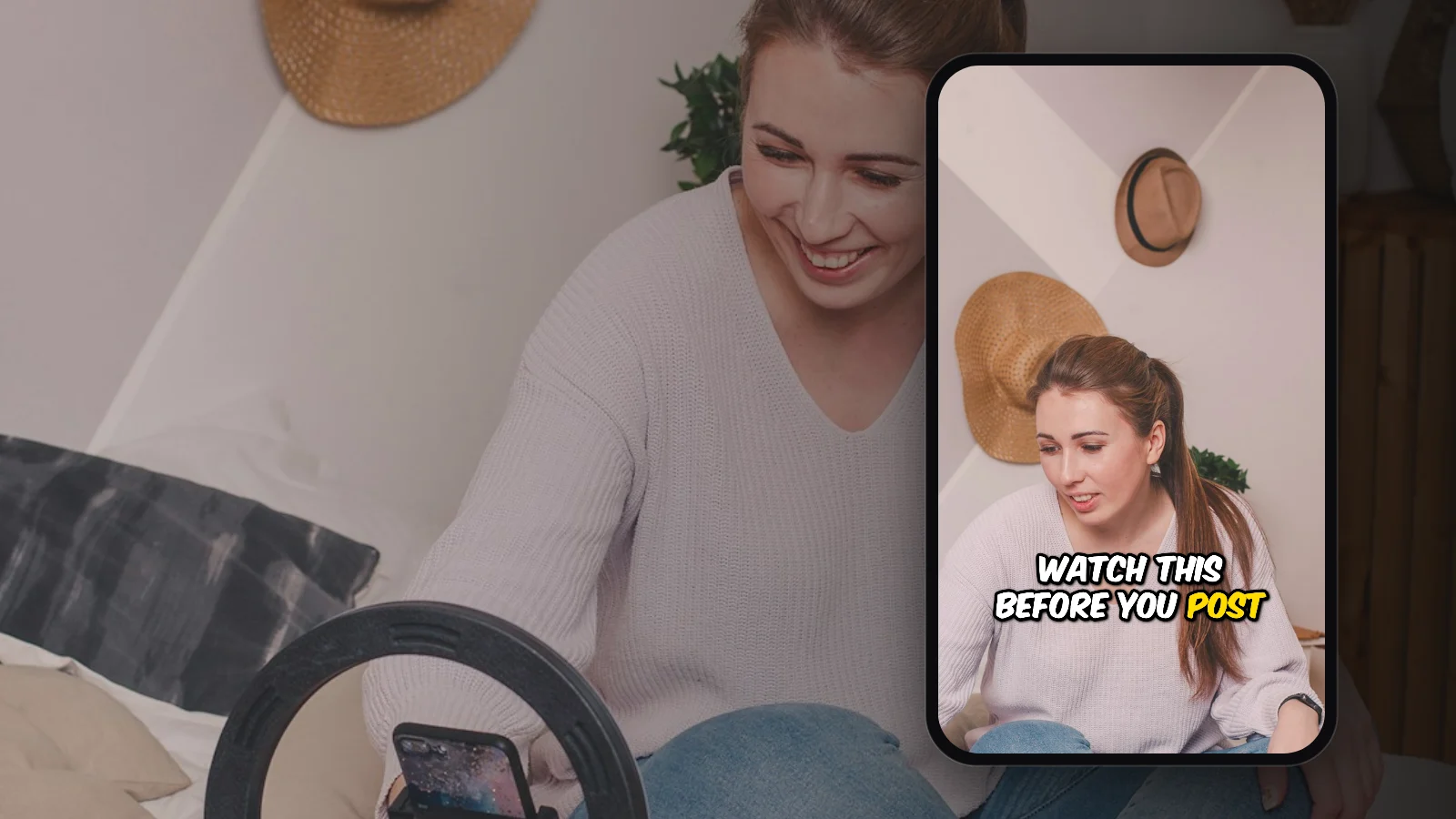
There are two ways to add captions to a TikTok video. You can tap Captions in TikTok's editor and let the app transcribe your speech, which is quick but plain, and viewers can switch it off. Or you can burn styled captions into the video before you upload it, so you choose the font, colors and animation, and every viewer sees them, on TikTok and anywhere else you post the clip.
Option 1: TikTok's built-in auto captions
TikTok can transcribe your video while you edit it in the app:
- Tap + and record a video, or tap Upload to pick one from your phone.
- In the editing screen, tap Captions in the toolbar on the right.
- Wait a few seconds while TikTok transcribes the speech.
- Tap the captions to check them. Fix any wrong words and add punctuation, which auto captions often leave out.
- Tap Save, then post as usual.
Check the captions before you post. Auto captions struggle with names, slang, accents and words that sound alike, and they're harder to fix once the video is live.
What to expect:
- Good for: a quick, free caption with no extra app.
- Look: TikTok's caption style, with only a small choice of fonts, colors and backgrounds. There's no word-by-word highlighting or animation.
- Viewers can turn them off. TikTok lets viewers hide captions from the share panel (TikTok), so not everyone sees them.
- They stay on TikTok. If you save the video and post it to Reels or Shorts, the captions don't come with it.
Option 2: Burn styled captions into the video
Burned-in captions (also called open captions) are part of the video picture itself. Everyone sees them, styled the way you chose, and they come along when you repost the clip on Instagram Reels or YouTube Shorts. With AutoSubtitles it takes a minute or two in your browser, with no account and nothing to install:
- Open autosubtitles.com and click New Video.
- Choose your video. Pick its language or leave it on Auto Detect. Your video stays on your device; only the audio is sent for transcription.
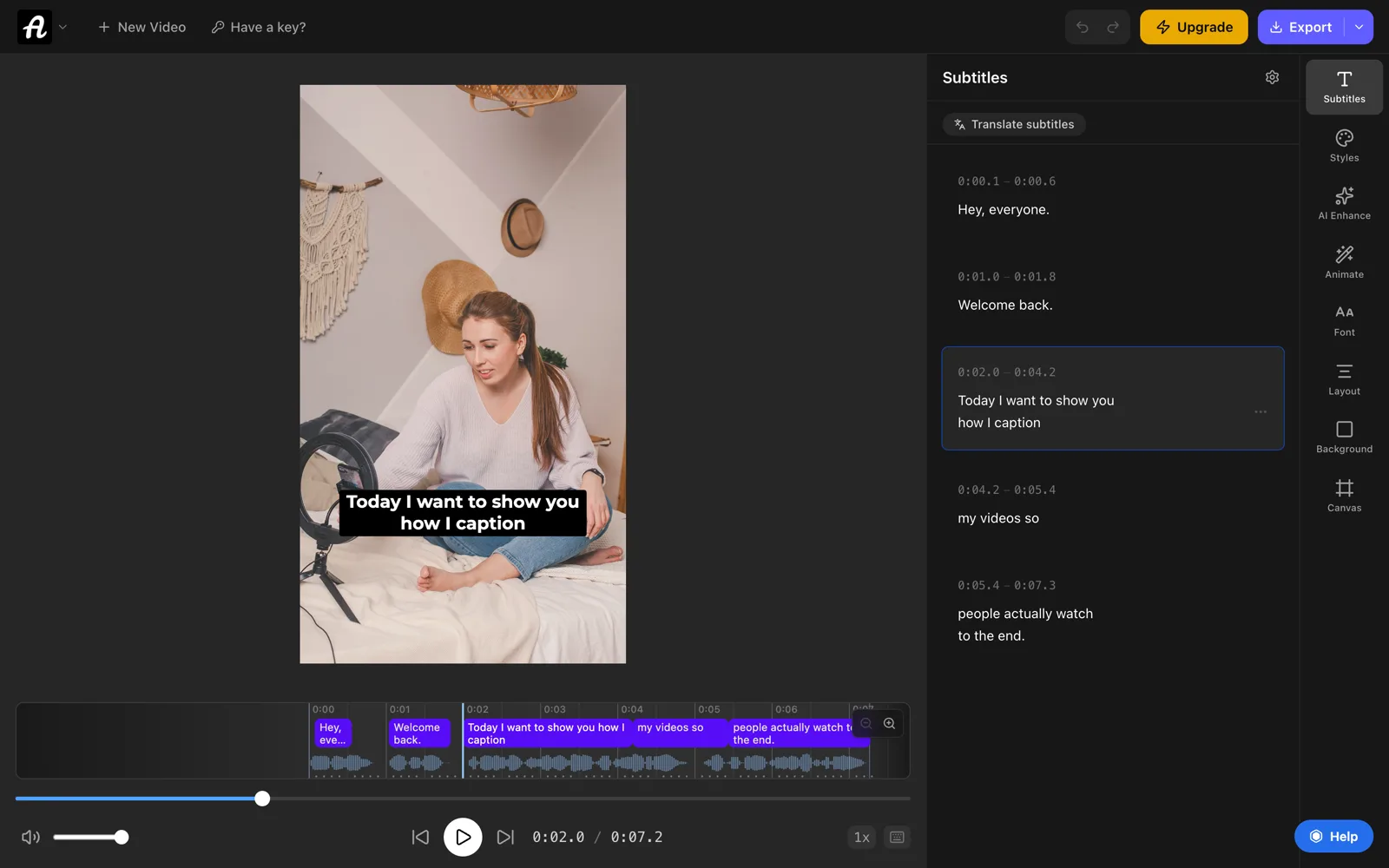
- Check the captions. They appear automatically in a few seconds. Click any line to fix a word or adjust its timing.
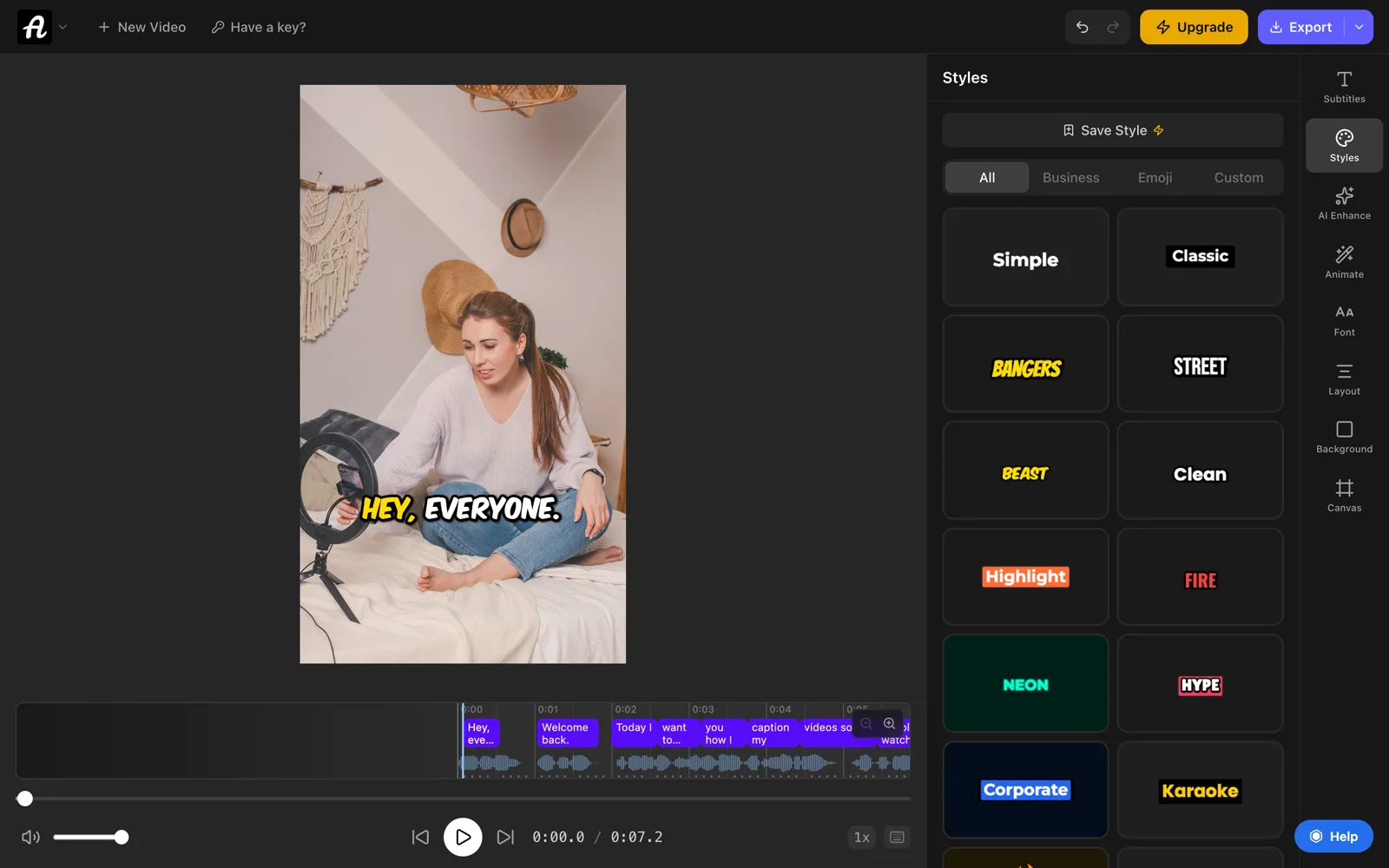
- Pick a style. Open Styles and choose one of 28 caption styles, including bold TikTok-style captions with word-by-word highlighting and pop-in animation. Then change the font, colors, outline and size to match your brand.
- Keep lines short. Under Layout, set Max Words Per Line to 2 to 4, so each caption is readable at a glance.
- Make it vertical. If your clip isn't already 9:16, open Canvas and set Aspect Ratio to 9:16.
- Export the video with the captions burned in, then upload it to TikTok.
If you burn captions in, leave TikTok's auto captions off. Otherwise viewers can end up with two sets of text on screen.
The free plan includes every caption style and animation and handles videos up to 10 minutes long, which covers most TikToks. Free exports are up to 720p with a small AutoSubtitles watermark. Pro ($9/month) removes the watermark and exports in HD and 4K. See the TikTok caption generator for more.
Which option should you use?
- Use TikTok's captions for a quick post you'll only share on TikTok, where the default look is fine.
- Burn captions in when the look matters, when you want highlighted, animated words, or when you'll also post the clip to Reels or Shorts.
For YouTube and other videos, see how to add subtitles to a video.
Where to put captions on a TikTok
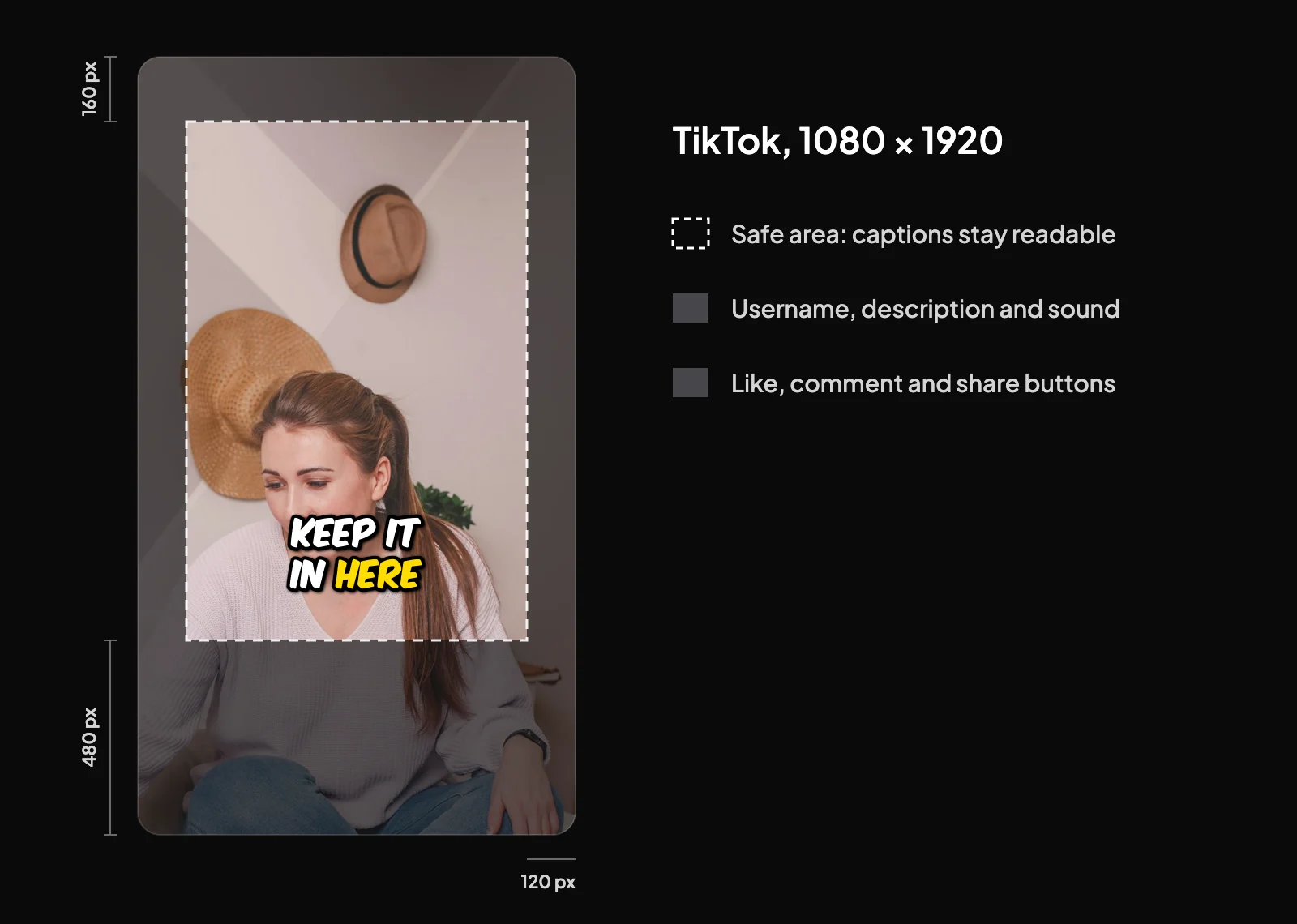
TikTok's username, description, music strip and the like, comment and share buttons sit on top of your video, mostly along the bottom and the right side. Captions placed there get covered.
TikTok doesn't publish one fixed safe zone; it varies with the description length and anything attached to the post. A widely used rule of thumb for a 1080×1920 video is to keep text at least:
- 160 px from the top
- 480 px from the bottom (the lower quarter of the frame)
- 120 px from each side, and more on the right, where the buttons are
Captions just above the lower quarter, or in the middle of the frame, stay clear on almost every phone.
Caption styles that work on TikTok
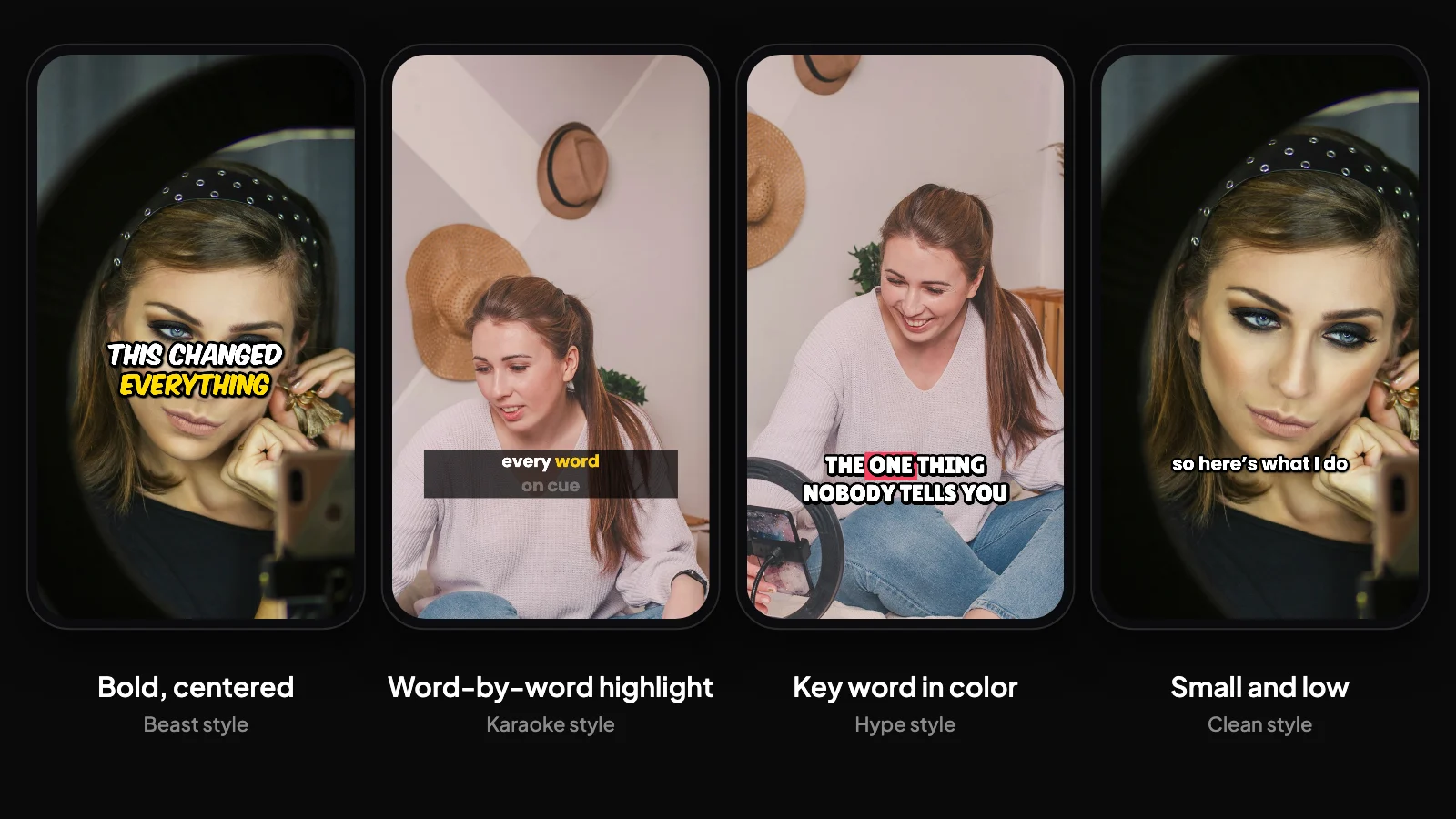
- Bold, centered words: large, high-contrast text in the middle of the frame, a few words at a time.
- Word-by-word highlighting: each word lights up as it's spoken, which keeps eyes on the screen.
- A second color for key words: stresses the point of the sentence. Use it sparingly.
- Small captions near the bottom: clean text above the safe-zone line, for a calmer, more professional look.
Tips for TikTok captions
- Make the text big. TikTok is watched on phones, and small captions don't get read.
- Use high contrast. White or yellow text with a dark outline reads on almost any footage.
- Keep lines short. Two to four words at a time is easy to follow while watching.
- Check every name and brand. Speech recognition often gets them wrong.
- Use one style across your videos, so people recognize your content as it scrolls past.
Why caption your TikToks?
- Many people watch with the sound off. In a survey of 5,616 US adults, half said captions matter to them because they usually watch video with the sound off (Verizon Media and Publicis Media, 2019).
- Captions keep people watching. In the same survey, 80% said they're more likely to watch a whole video when captions are available.
- Accessibility. Deaf and hard-of-hearing viewers can follow along.