
Open captions are part of the video picture: they're burned in when the video is made, so every viewer sees them and nobody can turn them off. Closed captions are a separate text track that travels with the video, and viewers switch them on or off, usually with the CC button. Open captions look the same everywhere and need nothing from the player. Closed captions need a player that supports them, but viewers stay in control, and one video can carry them in several languages.
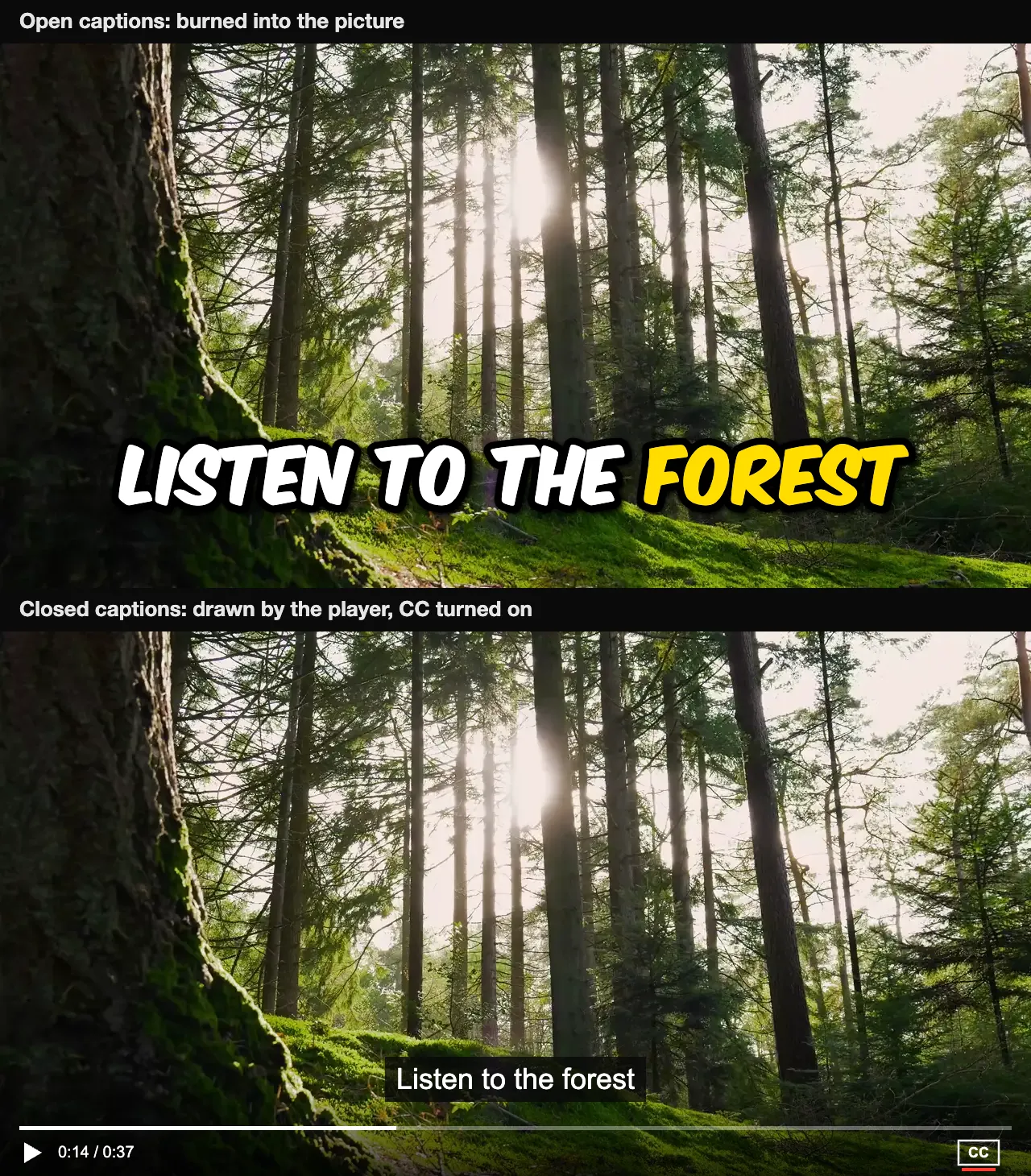
Open vs closed captions at a glance
| Open captions | Closed captions |
|---|---|
| Always on screen. Viewers can't turn them off. | Viewers turn them on or off, usually with the CC button. |
| Drawn into the video picture when it's exported. | Kept in a separate track or file, such as an SRT or VTT file, and drawn by the player. |
| Show in every app and player, and in every download and repost. | Show only where the player supports captions and the file was uploaded with the video. |
| The creator chooses the font, colors, size, position and animation. | The player decides how they look. Some players let viewers change the size and colors. |
| One language per video file. | As many languages as you upload files for; viewers pick one. |
| Fixing a typo means exporting the video again. | Fix the text file and upload it again; the video stays the same. |
| Best for TikTok, Instagram Reels, YouTube Shorts, ads and clips that get shared around. | Best for long YouTube videos, courses, TV, streaming and video players on websites. |
What are open captions?
Open captions are captions that are always visible because they're part of the image itself. A video editor or caption tool draws the words onto every frame and exports a new video file. From then on there's no caption "track" at all, just a video with text in it, so it plays the same in every app, on every device and with the sound off.
You'll also hear them called burned-in captions, hardcoded captions or hardsubs. On social media, most of the bold, word-by-word captions you see on short videos are open captions.
Advantages
- Everyone sees them, including viewers who never think to turn captions on and apps that don't support caption files. TikTok and Instagram don't let you upload a caption file at all.
- They stay with the video. Download it, repost it to another app or send it in a message, and the captions come along.
- You control how they look. Choose the font, colors, outline, position and animation, and make the captions part of your video's style.
- Nothing to set up. There's one video file to upload and no caption file to keep in sync.
Disadvantages
- Viewers can't turn them off, and some find them distracting.
- Viewers can't make them bigger or change their colors, so readability is up to you.
- One language only. For another language you need another copy of the video.
- Changes mean a new export. If you spot a typo after posting, you fix it and upload the video again.
- Platforms can't read them as text, so they can't translate them or use them in search the way they can with a caption file.
Open captions at the movies
In cinemas, an open-caption showing is a screening with the captions shown on the screen for the whole audience. Many US chains, including AMC, run them for some films. Closed captioning at the movies works differently: the theater lends you a small screen or glasses that show the captions only to you.
What are closed captions?
Closed captions are captions the viewer can turn on or off. They're kept apart from the picture, either in a caption file uploaded next to the video (on YouTube, Vimeo, Facebook or LinkedIn, usually an SRT file or a VTT file) or in a caption track inside a TV broadcast or streaming video. The player reads the text and draws it over the picture, usually as white text on a dark box at the bottom.
Advantages
- Viewers choose. Anyone who doesn't want captions can turn them off, and anyone who needs them turns them on.
- Viewers can often adjust them. Many players, TVs and phones let viewers change the size, color and background of closed captions.
- Several languages. Upload one file per language and viewers pick theirs. Platforms such as YouTube can also translate them automatically.
- Easy to fix. Edit the text file and upload it again, without touching the video.
- Searchable text. Platforms can read the captions, which helps them understand what the video is about.
Disadvantages
- They don't work everywhere. TikTok, Instagram and many messaging apps don't take caption files, and many players start with captions off.
- They're lost when the video is shared. Download the video or repost it elsewhere and the caption file stays behind.
- They look the same on every video. You can't style them to match your brand or highlight words as they're spoken.
- More files to manage. Each video needs its caption file uploaded, in sync and in every language you support.
Open captions vs subtitles
Subtitles and captions both put the spoken words on screen, but strictly they're written for different viewers. Subtitles are for people who can hear the audio but want to read along, often in another language. Captions are for people who can't hear it, so they also describe sounds that matter, such as [music], [door slams] or [laughs], and say who's talking when it isn't obvious. Subtitles written that way are called SDH, subtitles for the deaf and hard of hearing. Our guide to closed captions vs subtitles goes through the differences.
"Open" and "closed" describe how the text is delivered, not what it says. So burned-in subtitles are open subtitles, and a subtitle file you upload to YouTube works as closed captions. In the UK and Ireland, "subtitles" is the usual word for both. Online, most people use the two words for the same thing.
Which should you use?
- Short videos for social media: open captions. TikTok, Reels and Shorts play with the sound off for many viewers, and burned-in captions are the only kind every viewer sees. They also keep your look when the clip is reposted.
- Long YouTube videos, courses and webinars: closed captions. Viewers watching for 20 minutes like to choose, and a caption file can be translated and edited later.
- Ads, trailers and promos: open captions. You can't count on the viewer turning captions on, and the captions are part of the design.
- TV, streaming and video on your own site: closed captions. Broadcast and streaming players expect a caption track, and on your site an HTML video player can load a VTT file.
- Both: burn captions into the short clips you cut for social media, and upload a caption file for the full video on YouTube. Just don't do both on the same video. With burned-in captions and a CC track turned on, viewers get two sets of text on top of each other. The same goes for TikTok's and Instagram's own auto captions: leave them off on a video that already has captions burned in.
Are open or closed captions better for accessibility?
Both work. The Web Content Accessibility Guidelines (WCAG), which most accessibility laws and policies point to, accept captions for pre-recorded video either way: they list both open captions and closed captions as ways to meet the requirement. What matters is that the captions are accurate, in sync with the speech, and include the sounds a viewer needs to follow along.
Each kind has an accessibility edge. Closed captions let viewers make the text bigger or change its colors, which helps people with low vision. Open captions are there even when a player, app or embed doesn't support captions, and nobody has to find the CC button.
If you burn captions in, make them easy to read:
- Keep strong contrast. Light text with a dark outline or box reads on any background.
- Keep lines short. One or two lines at a time, each short enough to read at a glance.
- Make them big enough to read on a phone held at arm's length.
- Keep them clear of the app's buttons. On TikTok and Reels, the bottom and right edge are covered by buttons and the description. Our TikTok and Reels guides give the safe areas.
- Include sounds that matter, such as [music] or [phone rings], when the video depends on them.
How to add open captions to a video
A caption generator writes the captions from the video's speech, then burns them into a new video file. With AutoSubtitles, in your browser, with no account:
- Open autosubtitles.com and click New Video, then choose your video. Your video stays on your device; only the audio is sent for transcription.
- Check the captions. They appear a few seconds later, line by line. Click any line to fix a word or its timing.
- Choose how they look. Open Styles and pick one of 28 caption styles, from plain white subtitles to bold word-by-word highlighting, then adjust the font, colors, size and position.
- Export the video with the captions burned in, and post it anywhere.
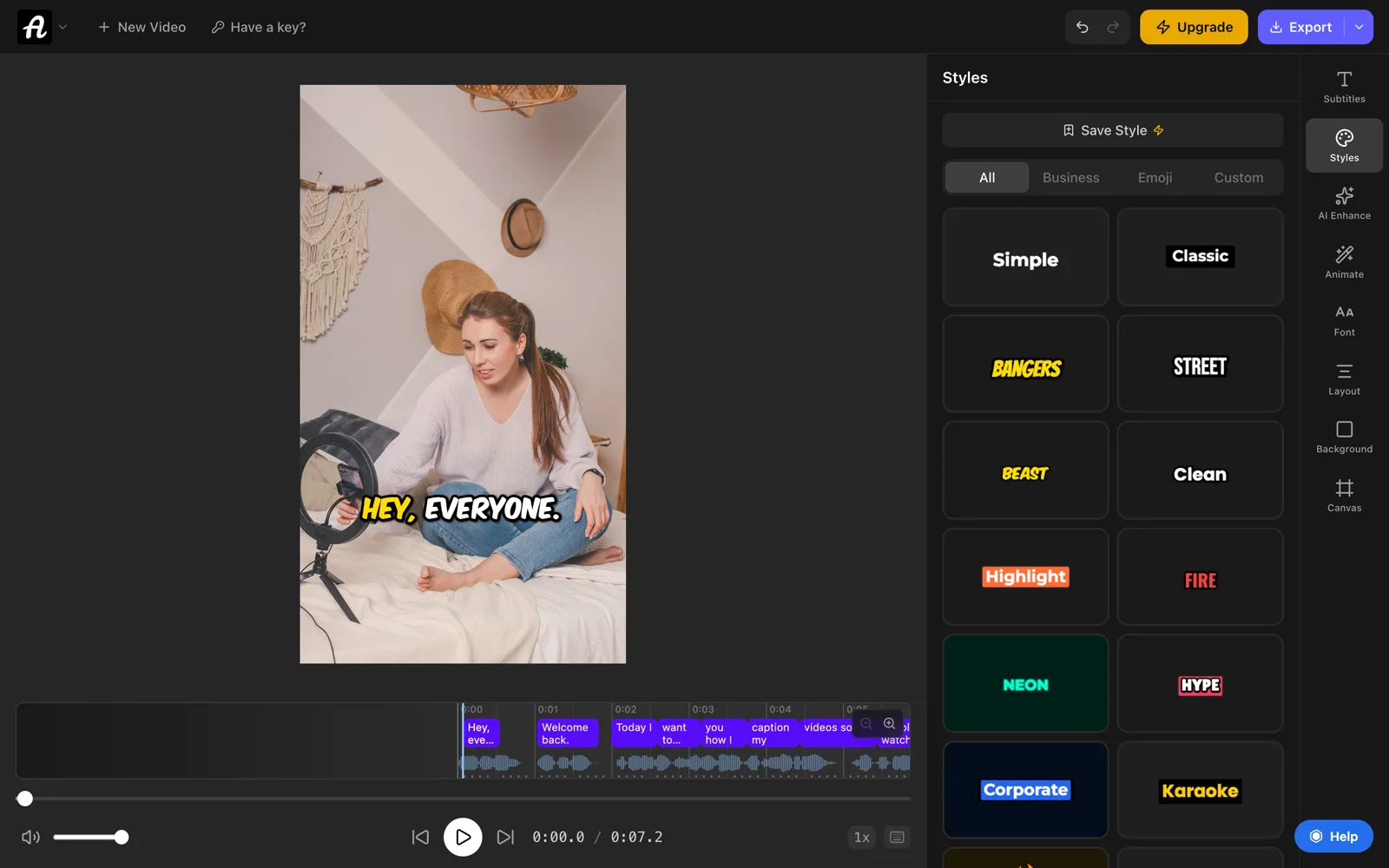
It's free for videos up to 10 minutes, with exports up to 720p and a small watermark. Pro ($9/month) removes the watermark and exports in HD. Our guide on how to add subtitles to a video has the steps for YouTube, TikTok and Reels.
How to add closed captions to a video
Closed captions need a caption file. Make one, then upload it next to the video.
- Make the file. AutoSubtitles writes the captions from the speech; on Pro you download them as an SRT or VTT file (see the SRT generator). To type them yourself, our free subtitle editor keeps the numbers and timings in the right format. If a platform wants a different format, the free SRT to VTT and VTT to SRT converters switch it in your browser.
- Upload it. On YouTube, in YouTube Studio, open Subtitles, click your video, click Add in the Subtitles column, choose Upload file, select With timing, pick the file and click Publish. Vimeo, Facebook and LinkedIn have similar options in their video settings.
- Check it. Play the video, turn on CC, and watch the first and last lines to make sure they're in sync. If every line is early or late by the same amount, the subtitle shifter moves them all in one go.
Frequently asked questions
What is the difference between open and closed captions?
Open captions are burned into the video picture, so they're always on screen and can't be turned off. Closed captions are a separate text track that the player draws over the video, and viewers turn them on or off with the CC button.
What does CC mean on a video?
CC stands for closed captions. Pressing the CC button turns the video's closed captions on or off. If a video has no caption track or file, the button does nothing or doesn't appear.
Can you turn off open captions?
No. Open captions are part of the video image, like anything else in the picture. The only way to watch without them is to find a copy of the video that was exported without captions.
Can you remove burned-in captions from a video?
Not cleanly. The words replaced the original pixels in every frame, so they can only be cropped out or blurred. Keep the original video without captions, so you can export a new version whenever you need one.
Are burned-in subtitles the same as open captions?
Yes, in practice. Both are drawn into the video picture and can't be turned off. Strictly, captions also describe sounds, like [music], while subtitles only write down the speech, but most people use the terms for the same thing.
Are TikTok captions open or closed?
TikTok's auto captions are closed captions: TikTok draws them over the video, and viewers can hide them. Captions you burn into the video before uploading, or add as text on screen in the editor, are open: everyone sees them.
Do open captions meet accessibility requirements?
They can. WCAG, the standard most accessibility rules use, accepts open or closed captions for pre-recorded video, as long as they're accurate, in sync and include important sounds.
Can you add open captions to a video for free?
Yes. AutoSubtitles writes the captions from your video's speech and burns them in for free, with no signup, for videos up to 10 minutes. Free exports are up to 720p with a small watermark.