
Premiere Pro can write captions for you. Open Window → Text, click Transcribe to turn the speech into a transcript, then click Create captions and Premiere lays them out on a caption track above your video. It's built in, with no plugin and no extra cost. You can also import an SRT file or type captions by hand. After that you style the track and choose at export whether the captions are burned into the picture or saved as a separate file. All of it is below, plus how to get bold, word-by-word captions for TikTok, Reels and Shorts.
Adobe renamed Premiere Pro to Adobe Premiere with version 26 in January 2026. It's the same app, and these steps work in both. Menu names have moved a little between versions, so if a button isn't where we say, look for the same name in the Text panel.
Can Premiere Pro add captions automatically?
Yes. Premiere has had automatic captions, which Adobe calls Speech to Text, since 2021. It transcribes the speech in your sequence, and you turn the transcript into captions in one click. It's part of every Premiere subscription.
You have three ways to get captions into Premiere:
- Automatic captions from the transcript. The quickest way, and the one most people use. Read them through afterwards: names, brands and mumbled words are where transcription slips.
- Import an SRT file. Use it when someone else made the subtitles, for a translation, or when you already have a transcript from another tool.
- Type them by hand. Fine for a few lines, like a title card or a quote, but slow for a whole video.
How to add captions automatically in Premiere Pro
- Open your sequence on the timeline.
- Open the Text panel. Choose Window → Text, or switch to the Captions and Graphics workspace from Window → Workspaces.
- Transcribe the sequence. In the Transcript tab, click Transcribe (Transcribe sequence in some versions). Pick the spoken language and the audio track with the speech, then start it.
- Fix the transcript. Read it through and correct wrong words now. Every caption is made from this text, so fixing it here is quicker than fixing captions one by one.
- Click Create captions. The button is the CC icon at the top of the Transcript tab.
- Choose the caption settings:
- Format: Subtitle for most videos. The broadcast formats (CEA-608, CEA-708, Teletext) are for TV delivery.
- Maximum length in characters: 42 is the usual limit for landscape video. Use about 20 to 25 for vertical video, so a line fits the narrow frame.
- Minimum duration and Gap between captions, so no caption flashes past too fast to read.
- Lines: Single or Double. Premiere 26.3 (June 2026) and later also has Single word, which shows one word at a time.
- Click Create. A caption track appears above your video, and each caption is a clip on it.
Each caption clip can be moved and trimmed like any other clip. To change the words, double-click a caption in the Captions tab of the Text panel, or select it in the Program Monitor and type.
How to import an SRT file into Premiere Pro
Premiere imports SRT files, plus the broadcast caption formats SCC, MCC, STL and XML (DFXP/TTML). SRT is the one most tools give you. Save it as UTF-8, or accents and symbols come in as strange characters.
- Import the file. Choose File → Import and pick the
.srt, or drag it into the Project panel. In the Text panel's Captions tab, Import captions from file does the same thing. - Put it on the timeline. Drag the caption file from the Project panel onto your sequence. Premiere asks where it should start: the start of the sequence, the playhead, or the file's own timecode. For a file made from this video, pick the start of the sequence.
- Check the sync. Play a few captions near the start, middle and end. If they're all early or late by the same amount, select every caption clip and drag them together.
- Style the track (see below), then export.
An SRT holds only words and timings, so the captions come in plain and take the track's style.
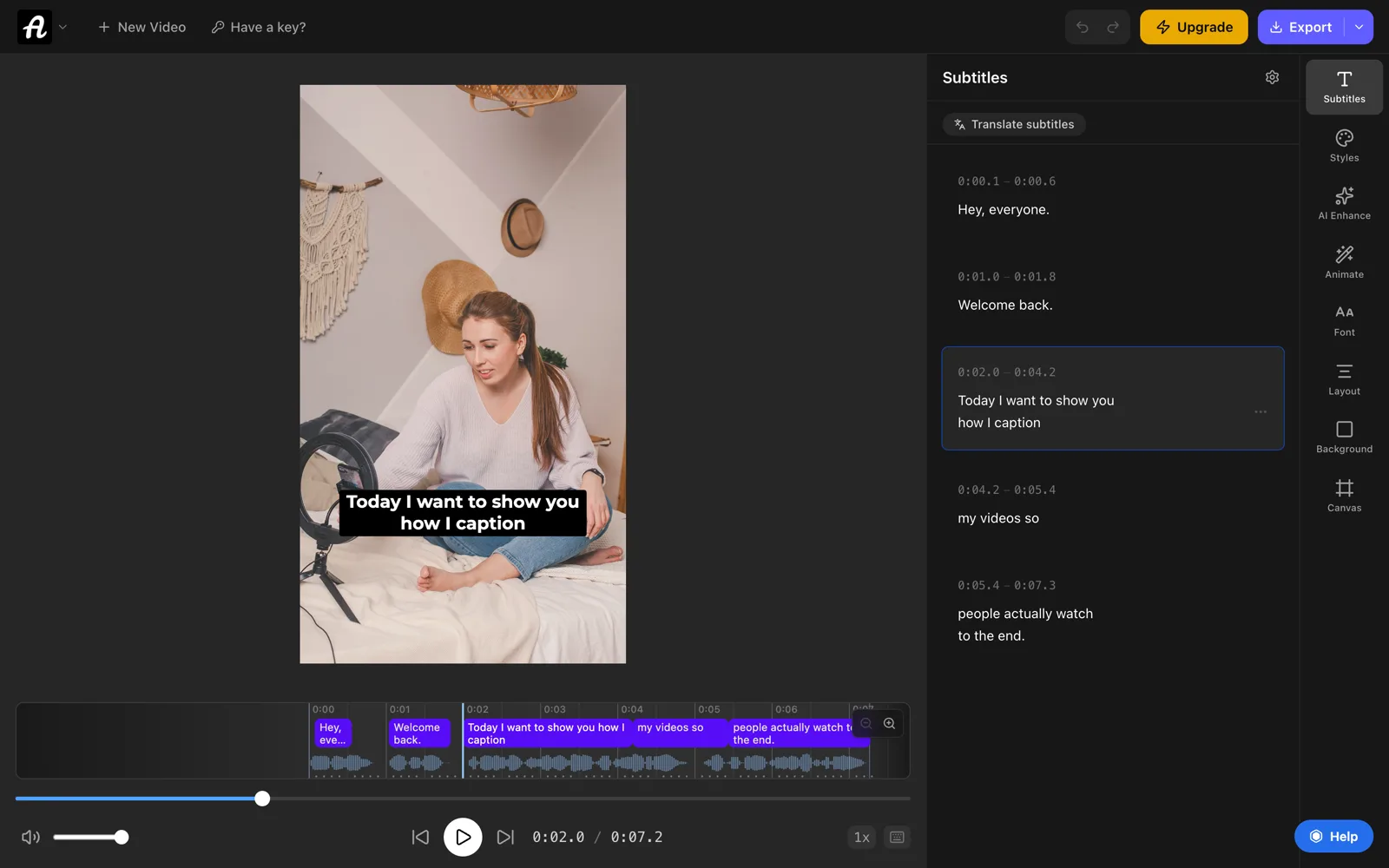
If Premiere's transcription doesn't handle your language well, or you'd rather caption somewhere else, AutoSubtitles transcribes over 100 languages. Export your sequence, open autosubtitles.com and click New Video. Your video stays on your computer; only the audio is sent for transcription. Fix any line, then click the arrow next to Export and choose .srt. Subtitle file downloads are part of Pro ($9/month). The timings match your sequence as long as you don't change the edit.
If you have the words but no timings, such as a script, the free TXT to SRT converter splits them into subtitles and estimates the timings. You then nudge them into place on the timeline.
How to add subtitles manually in Premiere Pro
- Open the Text panel (Window → Text) and click the Captions tab.
- Create a caption track. Click Create new caption track, choose Subtitle as the format and click OK.
- Move the playhead to where the first line is spoken.
- Add a caption. Click the + button at the top of the Captions tab and type the line.
- Set the timing. Drag the ends of the caption clip on the timeline so it starts and stops with the speech.
- Repeat for every line.
A minute of speech is about 20 captions, so for anything longer than a short clip, create them automatically and fix the text instead.
How to style captions in Premiere Pro
Select the caption clips on the timeline (click the track to select all of them) and open the Properties panel. In older versions it's the Essential Graphics panel's Edit tab. There you can change:
- Font, size and weight. A plain, wide sans-serif reads best.
- Fill color, stroke and shadow, so white text stays readable over bright footage.
- Background, a box behind the text, the classic TV caption look.
- Alignment and position, to move captions up the frame. On vertical video, keep them above the bottom quarter, where TikTok and Reels put their buttons and description.
To reuse a look, open the Track Style menu and choose Create Style. The style is saved to your project, and you can apply it to other caption tracks.
Single-word and animated captions in Premiere Pro
Plain captions are one style per track: no word lighting up as it's spoken, no pop or bounce. Premiere 26.3 added Single word captions, which show one word at a time, and that gets you part of the way:
- Create the captions with Lines set to Single word (step 6 above).
- Style the track in the Properties panel: a heavy font, large size and a thick stroke.
- To animate them, select the caption clips and choose Upgrade Caption to Graphic from the graphics menu in the menu bar. Each caption becomes a graphic clip. You can then add motion with effects, keyframes or animation presets.
Upgraded captions are no longer captions. You can't edit them in the Text panel any more, and they can't be exported as an SRT. Fix the words first, and keep a copy of the caption track if you also need a subtitle file.
Highlighting the spoken word inside a full line, the karaoke look of most short-form video, isn't part of Premiere's caption track. People build it with caption plugins and paid template packs, or burn the captions in after export (below).
How to export captions from Premiere Pro
Open the export screen with File → Export → Media (Ctrl+M, or Cmd+M on a Mac). In the export settings, open Captions and choose an Export Option:
- Burn Captions Into Video draws the captions into the picture. Use it for TikTok, Reels, Shorts, LinkedIn and anywhere else that can't load a caption file.
- Create Sidecar File saves the captions as a separate file next to the video. Choose SubRip Subtitle Format (.srt) for YouTube, Vimeo and Facebook.
- Embed in Output File stores them inside the video file. Only some formats and players support it.
To save just the SRT without exporting the video, click the ⋯ menu in the Text panel's Captions tab and choose Export to SRT file. Or choose File → Export → Captions.
Burned-in captions are open captions: everyone sees them, and they can't be turned off. A sidecar file gives viewers a CC button instead. Our guide to open captions vs closed captions explains when to use each.
How to add animated captions to a Premiere Pro video
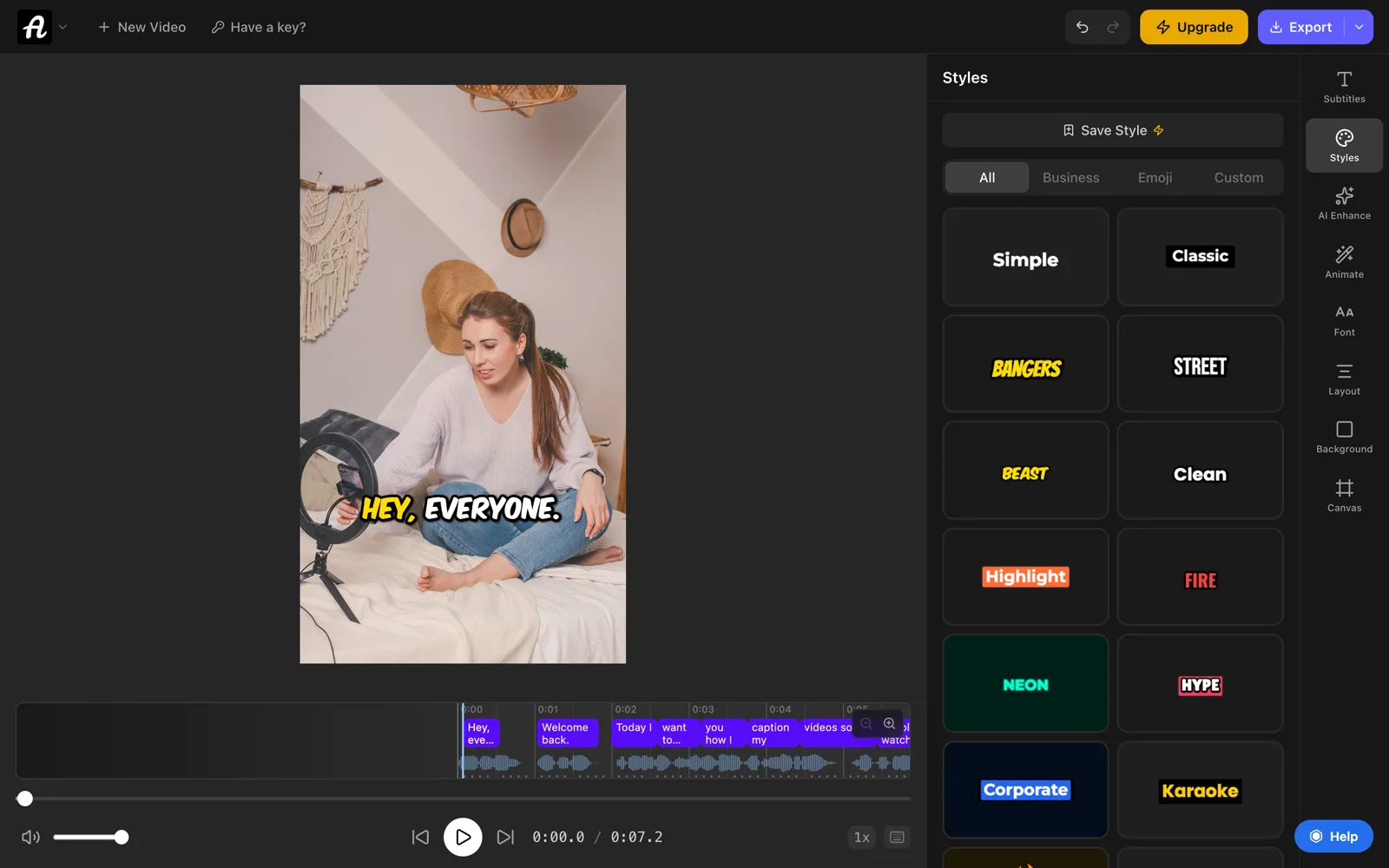
For TikTok, Reels and Shorts, the quickest way to get word-by-word captions is to finish the edit in Premiere, export it, and caption the finished file with AutoSubtitles. It runs in Chrome, Edge or Safari, with no account and nothing to install.
- Export your video from Premiere without captions.
- Open autosubtitles.com, click New Video and choose the file. Pick its language, or leave it on Auto Detect.
- Check the captions. They're written from the speech and timed word by word. Click any line to fix it.
- Pick a style. Open Styles and choose one of 28 caption styles, from plain subtitles to bold word-by-word highlighting. Then adjust the font, colors, size and position.
- Export the video with the captions burned in.
Caption last. Burned-in captions are part of the picture, so if you cut the video again in Premiere, you cut the captions with it.
The free plan includes every caption style and animation, for videos up to 10 minutes long. Free exports are up to 720p with a small AutoSubtitles watermark. Pro ($9/month) removes the watermark, exports in HD and 4K, and adds SRT and VTT downloads for importing into Premiere.
Which way should you use?
| If you… | Do this |
|---|---|
| Want plain captions on any video | Transcribe, Create captions, fix and style the track |
| Already have an SRT or a translation | Import it and drag it onto the sequence |
| Need only a few lines on screen | Type them on a caption track |
| Post on TikTok, Reels or Shorts | Export, then burn in animated captions |
| Upload to YouTube or Vimeo | Export a sidecar SRT file |
Common problems with captions in Premiere Pro
- The captions are missing from the exported video. The Captions export option was set to a sidecar file, or the caption track was hidden. Choose Burn Captions Into Video and check that the track's eye icon is on.
- There's no Transcribe button. Open Window → Text and click the Transcript tab. If it's still missing, update Premiere from the Creative Cloud app; older versions put Speech to Text elsewhere.
- The captions are cut off on vertical video. The lines are too long for a 9:16 frame. Make the captions again with fewer characters per line (about 20 to 25), or make the text smaller.
- Every caption is early or late by the same amount. The SRT was placed at the wrong start point. Select all the caption clips and drag them together, or import it again at the start of the sequence.
- Captions drift further out of sync as the video goes on. The SRT was made from a different cut or frame rate. Make it again from an export of this sequence.
- Accents or symbols show as strange characters. The SRT wasn't saved as UTF-8. Open it in our subtitle editor and save it again.
Frequently asked questions
How do I automatically add captions in Premiere Pro 2026?
Open Window → Text, click Transcribe in the Transcript tab, fix any wrong words, then click the CC button (Create captions). Pick Subtitle, set the line length and Single, Double or Single word lines, and click Create. Premiere adds a caption track above your video.
Are auto captions free in Premiere Pro?
Yes, with a Premiere subscription. Speech to Text and caption creation are built in, with no extra charge and no plugin.
How do I import an SRT file into Premiere Pro?
Choose File → Import and pick the .srt, or drag it into the Project panel. Then drag it from the Project panel onto your sequence and choose to start it at the beginning of the sequence. Premiere puts every subtitle on a caption track at its time.
How do I burn captions into a video in Premiere Pro?
In the export settings (File → Export → Media), open Captions and set the Export Option to Burn Captions Into Video. Check that the caption track is visible, then export.
How do I export captions as an SRT file from Premiere Pro?
In the Text panel's Captions tab, open the ⋯ menu and choose Export to SRT file. Or, when you export the video, set Captions to Create Sidecar File and pick the SRT format.
What's the difference between captions and subtitles in Premiere Pro?
In Premiere, "Subtitle" is the caption format for most video, while CEA-608, CEA-708 and Teletext are closed-caption formats for broadcast TV. In everyday use, captions are written for viewers who can't hear the audio, and subtitles for viewers who don't speak the language. Our guide to closed captions vs subtitles covers the difference.
What is the best free caption plugin for Premiere Pro?
You may not need one: Premiere's own Speech to Text writes and times captions for free. Plugins are mostly for animated, word-by-word styles, and most of those are paid. For short-form video, a free alternative is to export from Premiere and burn in animated captions with a caption generator like AutoSubtitles.
Can Premiere Pro make animated, word-by-word captions?
Partly. Since version 26.3, Premiere can create single-word captions, and you can animate them after choosing Upgrade Caption to Graphic. The highlighted-word, karaoke style of TikTok captions takes plugins or templates. Burning captions in after export with a caption generator is the quickest way.
What does Ctrl+K do in Premiere Pro?
Ctrl+K (Cmd+K on a Mac) is Add Edit: it cuts the clips on the selected tracks at the playhead. Finish your cuts before you create captions. If you cut the video afterwards, play it through and check that every caption still lines up with the speech.