
To add subtitles to a YouTube video, open YouTube Studio, click Subtitles in the left menu and choose your video. Add the video's language, then click Add under Subtitles and pick one of three options: Upload file (an SRT or VTT you already have), Auto-sync (paste the words and YouTube times them), or Type manually. YouTube also writes automatic captions for many videos on its own, which you can check and fix in the same place. For Shorts and clips you post elsewhere too, most creators burn the captions into the video before uploading instead. All of these are below, step by step.
Four ways to add subtitles to a YouTube video
- Fix YouTube's automatic captions. Free and already there for many videos, but plain, and they often get names and technical words wrong.
- Upload a subtitle file. The most accurate way to get captions viewers can turn on and off. You need an SRT or VTT file with timings.
- Auto-sync or type in YouTube Studio. Free, built in, and fine for short videos. Slow for long ones.
- Burn captions into the video before you upload. The captions become part of the picture, in a style you choose, and show on every app the video is posted to. The usual choice for Shorts.
The first three give you closed captions: a CC track the viewer switches on. The last gives you open captions, always on screen. Open captions vs closed captions explains the difference in detail.
How to add subtitles in YouTube Studio
These steps work for any video on your channel, long or Short, on a computer (YouTube Help):
- Sign in to YouTube Studio and click Subtitles in the left menu.
- Click the video you want to caption.
- Set the language. If YouTube asks, confirm the video's language. To add subtitles in another language, click Add language and pick it.
- Click Add in the Subtitles column for that language.
- Choose how to add them: Upload file, Auto-sync or Type manually. Each is described below.
- Click Publish. Viewers can now turn the subtitles on with the CC button or in the player's settings.
You can also add subtitles while uploading: on the Video elements step, click Add next to Add subtitles and you get the same three options.
Upload a subtitle file (SRT or VTT)
- Choose Upload file.
- Select With timing if your file has timestamps (every SRT and VTT does), or Without timing for a plain text transcript, then click Continue.
- Pick the file and click Save, then Publish.
YouTube accepts SRT, VTT, SBV and several broadcast formats (YouTube Help). SRT is the safe choice: it works everywhere, but it carries no styling, and the file must be plain UTF-8 text. VTT can also set the position of each line. If your file is in another format, the free subtitle converter turns SRT, VTT, SBV and TXT into one another in your browser.
Auto-sync a transcript
- Choose Auto-sync.
- Paste the words spoken in the video, or upload a transcript file.
- Click Edit to check the result, then Save and close.
YouTube matches each word to the audio and sets the timings, which can take a few minutes. The transcript has to be in the language spoken in the video, and YouTube doesn't recommend auto-sync for videos over an hour long or with poor audio.
Type them manually
- Choose Type manually.
- Play the video and type each line as it's spoken. Tick Pause while typing so the video waits for you.
- Click Publish.
A minute of speech is about 20 caption lines, so typing a long video by hand takes a while. It's best for a short clip, or a few corrections.
YouTube auto captions: how to check and fix them
YouTube writes automatic captions with speech recognition after you upload, in about 90 languages, for long videos and Shorts (YouTube Help). They publish on their own, but they're never perfect: expect wrong names, missing punctuation and long run-on lines.
To fix them:
- In YouTube Studio, open Subtitles and click the video.
- Find the row marked (Automatic) for the video's language and click Duplicate and edit.
- Correct the words. Click Edit timings if a line is early or late.
- Click Publish. Your edited version now shows instead of the automatic one.
Automatic captions often aren't ready right after upload, and some videos never get them. That happens when the language isn't supported, the video is too long, the sound is poor, there's a long silence at the start, or several people talk over each other. If yours didn't appear, upload a subtitle file instead.
How to add captions to YouTube Shorts
Shorts get the same subtitle options in YouTube Studio as any other video, and automatic captions work on Shorts too. But a viewer has to turn closed captions on, and most people scroll Shorts with the sound off and never do. That's why most Shorts have captions burned in: big, bold text in the middle of the frame that every viewer sees.
To burn captions into a Short:
- Open autosubtitles.com in Chrome or Edge, or in Safari on an iPhone, and click New Video. Choose your vertical video and pick its language, or leave it on Auto Detect. The video stays on your device; only the audio is sent for transcription.
- Check the captions. They appear a few seconds later, timed to the speech. Click any line to fix a word.
- Pick a style. Open Styles and choose one of 28 caption styles, including word-by-word highlighting, then move the captions up out of the way of YouTube's buttons and description.
- Export the video and upload it to YouTube as a Short.
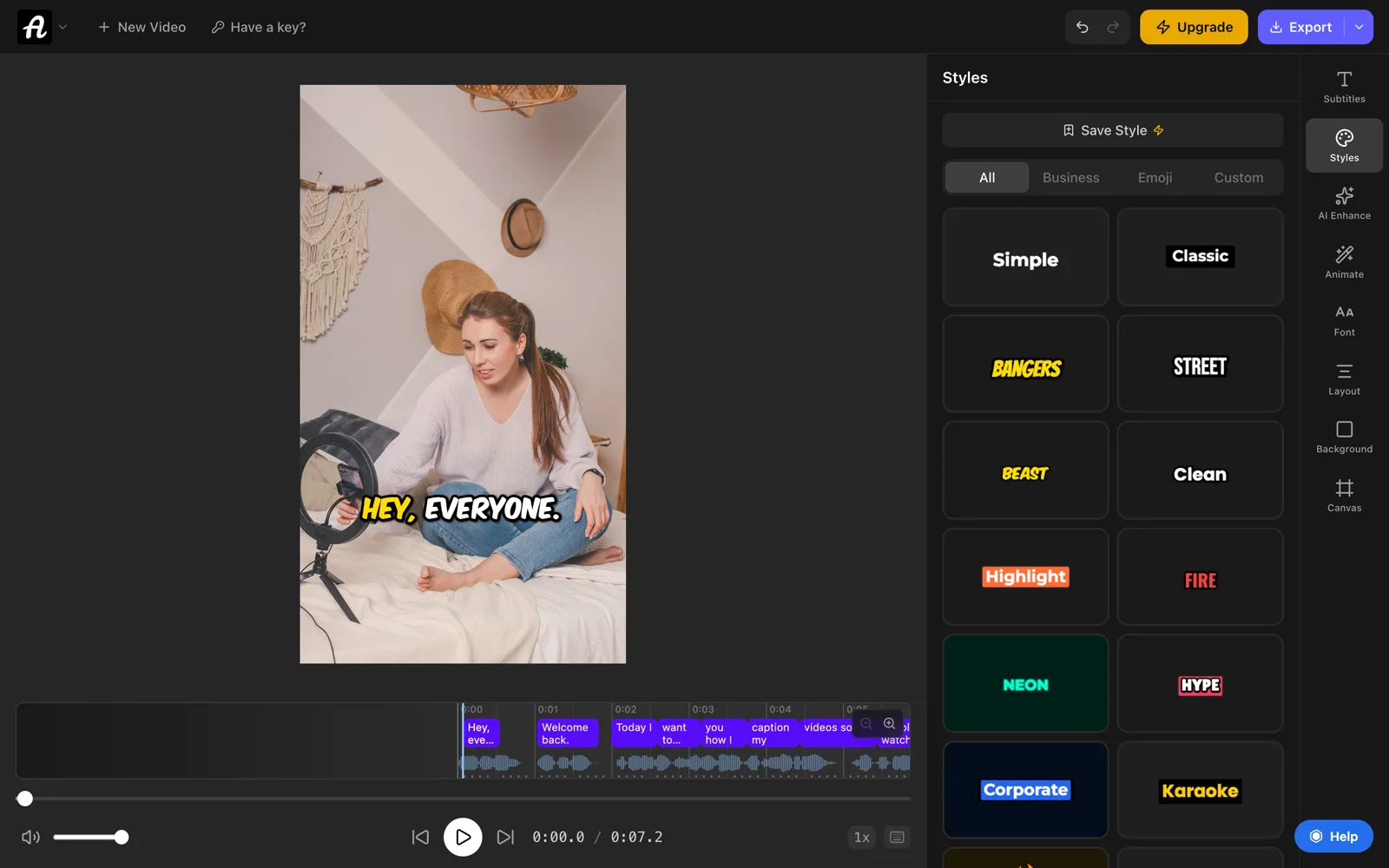
The same file works on TikTok and Instagram Reels, with the captions already on it. The YouTube subtitle generator page shows more examples.
How to get an SRT file for a YouTube video
If you'd rather not type or fix captions inside YouTube Studio, make the subtitle file first and upload it:
- Open autosubtitles.com and click New Video. Choose the video you're about to publish.
- Check the subtitles. They're transcribed from the speech in over 100 languages. Fix names and jargon before they ever reach YouTube.
- Click the arrow next to Export and choose .srt. Subtitle file downloads are part of Pro ($9/month).
- Upload the SRT in YouTube Studio with Upload file → With timing, as above.
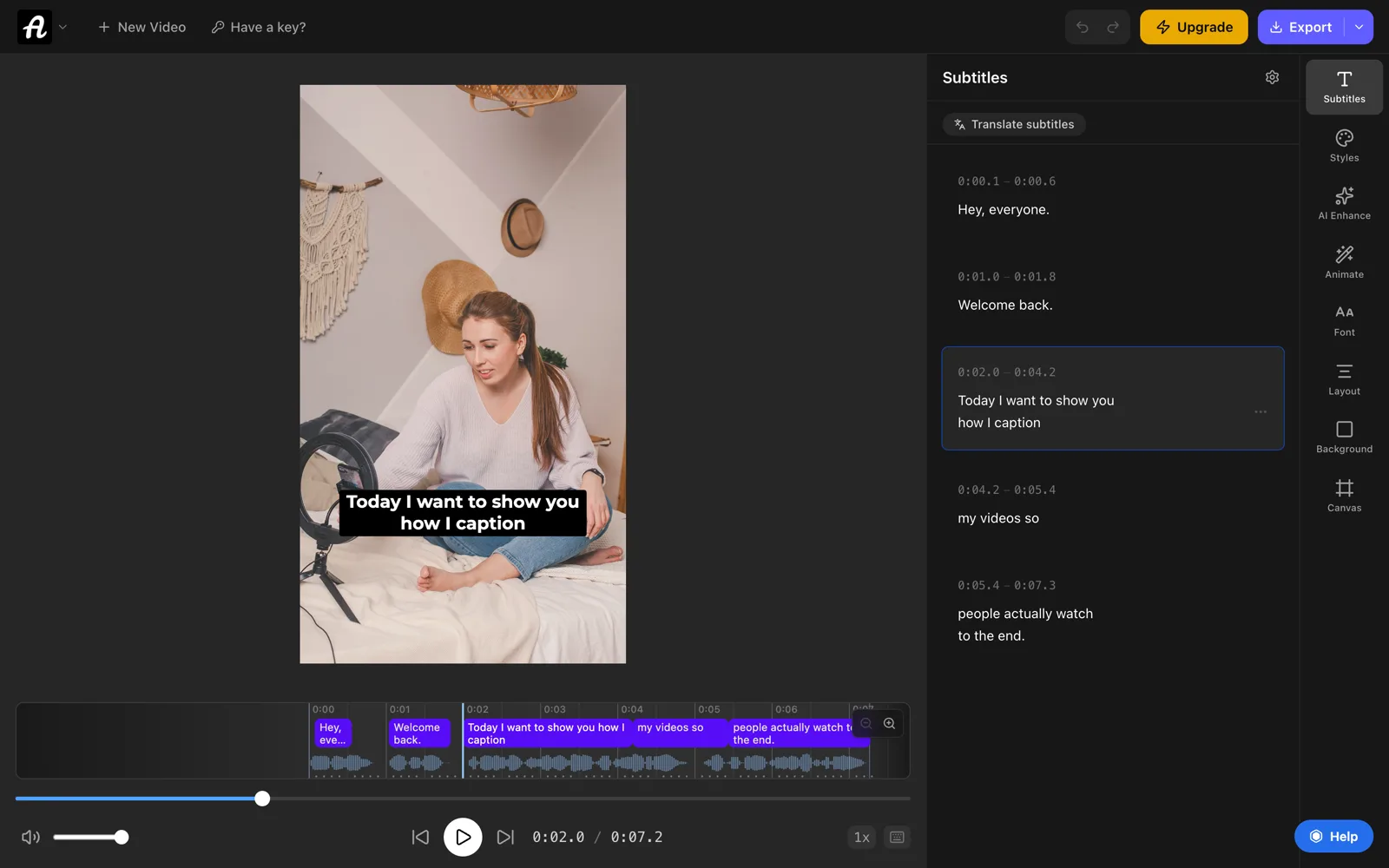
Already have the words written down, like a script? The free TXT to SRT converter turns plain text into a timed SRT. Or upload the text to YouTube with Without timing or Auto-sync and let YouTube time it. If every line in your file is a second early or late, shift them all at once with the subtitle shifter. See what is an SRT file for how the format works.
YouTube subtitles vs burned-in captions
| Subtitles in YouTube Studio | Captions burned into the video |
|---|---|
| Viewers turn them on with CC | Always on screen, for every viewer |
| YouTube's plain player style | Your font, colors, size and animation |
| YouTube can auto-translate them for viewers | One language, part of the picture |
| You can add or fix them after publishing | To change a word, export and upload again |
| Only on YouTube | Stay on the video on TikTok, Reels and anywhere else |
| Best for long videos, tutorials and courses | Best for Shorts, clips and videos watched on mute |
You can use both. Plenty of creators burn styled captions into their Shorts and upload an SRT for their long videos, or do both on the same video (with the burned-in ones, viewers just leave CC off).
Common problems
- The file won't upload. Check it's a real subtitle file, not a Word document renamed
.srt, and that it's saved as UTF-8. Open it in the free subtitle editor and save it again as SRT to clean it up. - The timing is off by the same amount everywhere. Usually the video was trimmed after the subtitles were made. Shift every line at once with the subtitle shifter, then upload again.
- There's no Add button. Set the video's language first, in the video's details or when YouTube asks on the Subtitles page.
- Automatic captions never appeared. See the reasons above. Uploading a file always works.
Frequently asked questions
How do I add subtitles to a YouTube video?
Open YouTube Studio, click Subtitles in the left menu and choose the video. Confirm its language, click Add under Subtitles and choose Upload file, Auto-sync or Type manually. Click Publish, and viewers can turn the subtitles on with the CC button.
How do I add an SRT file to a YouTube video?
In YouTube Studio, open Subtitles, choose the video and click Add under Subtitles. Choose Upload file, select With timing, pick the SRT and click Save, then Publish. The file must be plain UTF-8 text; YouTube ignores any styling in it.
How do I turn on automatic subtitles on YouTube?
As a creator, you don't need to: YouTube adds automatic captions by itself when it can recognize the speech, in about 90 languages. Check and fix them in YouTube Studio under Subtitles with Duplicate and edit. As a viewer, click the CC button on the player, or open the settings gear and choose Subtitles/CC.
Can I add subtitles to a YouTube video that isn't mine?
Not directly. YouTube removed community-contributed subtitles in 2020, so only the channel can add them. The channel owner can give you Subtitle Editor access in YouTube Studio, or you can send them a subtitle file to upload. To caption a clip for your own channel, you need the rights to reuse it.
Why can't I add subtitles on YouTube?
Usually the video's language isn't set: set it in the video's details, then the Add button appears. If automatic captions are missing, the audio may be unclear, too long, in an unsupported language, or start with a long silence. Uploading an SRT file works in all of these cases.
How do I add captions to YouTube Shorts?
You can add subtitles to a Short in YouTube Studio like any video, but viewers have to turn them on. For captions everyone sees, burn them in before uploading: open autosubtitles.com, choose the video, pick a caption style and export it, then upload the result as your Short.
Can I add subtitles to a YouTube video on my phone?
YouTube's subtitle steps are for YouTube Studio on a computer. On an iPhone, the simplest way is to burn captions in before you upload: open autosubtitles.com in Safari, import the video, pick a style, export and save it to Photos, then post it from the YouTube app.
Is it worth adding subtitles to YouTube videos?
Yes. Captions let deaf and hard-of-hearing viewers follow the video, help people who watch with the sound off or in a second language, and give YouTube the text of what you say. Uploaded subtitles can also be auto-translated by YouTube for viewers in other languages.
Can I add subtitles to a YouTube video for free?
Yes. YouTube Studio's automatic captions, auto-sync and manual typing are all free. Burned-in captions with AutoSubtitles are free for videos up to 10 minutes, with exports up to 720p and a small watermark. Pro ($9/month) removes the watermark, exports in HD and 4K, and adds SRT and VTT downloads.