
To add auto captions in CapCut, open your project and tap Text, then Auto captions (on a computer, open the Captions or Text tab and click Auto captions). Pick the spoken language, then tap Generate. CapCut transcribes the speech and lays the captions on a track under your video, where you can fix words and pick a style. One catch: CapCut's own help center now lists auto captions as a Pro feature, so on many accounts the upgrade prompt appears when you export. Below are the steps for the phone app, the desktop app and the web, how to edit and style the captions, and two ways to caption a CapCut video without Pro.
Three ways to caption a video in CapCut
- CapCut's auto captions. Fastest if your account has them. CapCut lists them as part of Pro.
- Import a subtitle file. Make an SRT somewhere else and load it into CapCut on a computer or the web. The captions are then ordinary CapCut text, so no Pro auto captions are involved.
- Caption the exported video. Edit in CapCut, export without captions, then burn styled captions into the finished video with a caption tool.
How to add auto captions in the CapCut app (iPhone and Android)
- Open CapCut and tap New project, or open one you've started. Choose your video.
- Tap Text in the bottom toolbar, then Auto captions.
- Choose the audio source: the video's own sound, a voiceover you recorded, or both.
- Pick the spoken language, then tap Generate (or Start on some versions). Short clips take a few seconds.
- Check the captions. Tap the caption track, then Edit captions to see every line in a list and fix wrong words.
- Pick a style. With the captions selected, open the style or template options and choose a font, color and animation. Changes apply to every caption at once.
- Export with the arrow at the top right.
If the export screen asks you to join Pro, the project uses Pro features. CapCut's advice is to remove anything marked with a Pro icon before exporting (CapCut Help). For captions, that means deleting the auto caption track.
How to add auto captions in CapCut on PC and Mac
- Import your video and drag it onto the timeline.
- Open the Captions tab in the toolbar at the top left. On some versions it sits under Text.
- Click Auto captions, choose the spoken language and, if the project has several audio tracks, which one to use.
- Click Generate (CapCut's help calls it Recognize on some versions).
- Edit and style the captions in the panel on the right, as below.
CapCut's own steps for desktop are in its help center.
How to add auto captions in CapCut Online (web)
- Open your project at capcut.com in Chrome or Edge.
- Click Text, then Auto captions.
- Choose the language and click Generate.
CapCut says recognition on the web works best in Chrome or Edge, with clear audio.
How to edit and style CapCut captions
- Fix a word. Select a caption on the timeline and choose Edit captions, then click any line and type. CapCut saves as you go. Check names, brand names and numbers first; auto captions get those wrong most often.
- Split a long caption. Put the playhead where you want the break and press Ctrl+B (Windows) or Cmd+B (Mac), or tap the scissors on a phone. Short lines of 2 to 5 words are easier to read in vertical video.
- Slow captions down or speed them up. Drag the edges of a caption block on the timeline to change when it appears and disappears.
- Change the look. Font, size, color, outline, shadow and background are in the Text or Style settings. Caption templates add animation, such as words that light up as they're spoken. CapCut marks many of its animated templates as Pro.
- Move the captions. Drag them on the preview. On TikTok, Reels and Shorts, keep them above the bottom fifth of the frame, where the app's buttons and description sit.
Are CapCut auto captions free?
Not reliably. CapCut's help page comparing its two paid plans lists auto captions among the "advanced AI tools" in Pro, not in Standard (CapCut Help, April 2026). Another help page uses auto captions as its example of a feature that makes CapCut ask a Standard user to upgrade at export (CapCut Help). Some free accounts still get a few auto captions; CapCut doesn't publish a limit, and it seems to depend on your account, country and app version. CapCut Pro is listed at $19.99 a month in the US, and prices vary by region.
If the Auto captions button shows a Pro badge, or the export asks you to upgrade, you have two ways to caption the video without CapCut Pro, both below.
How to add captions in CapCut without Pro
Option 1: import an SRT file (CapCut on PC, Mac or web)
CapCut can load a subtitle file, and the captions it creates are ordinary text you can style like any other.
- Get an SRT file for your video. If you have a script, paste it into the free TXT to SRT converter and it times the lines for you. To transcribe the speech instead, open the video at autosubtitles.com, fix the words, then click the arrow next to Export and choose .srt (subtitle downloads are part of AutoSubtitles Pro, $9/month).
- In CapCut on a computer, open the Captions menu and choose the option to add or import captions, then pick the .srt file (CapCut Help). In CapCut Online, open the Captions tab on the left and choose the file.
- Style the captions as above, and export.
Save the SRT as UTF-8 so accents and non-Latin letters show correctly. CapCut's phone app can't import subtitle files; projects synced from the desktop or web keep their captions, though. If your file is a VTT, turn it into SRT with the free VTT to SRT converter. What is an SRT file? explains the format.
Option 2: caption the finished video
Captions are usually the last thing you add, so you can do the whole edit in CapCut, export it without captions, and burn the captions in afterwards:
- Export your edit from CapCut without the caption track.
- Open autosubtitles.com in Chrome or Edge, or in Safari on an iPhone, and click New Video. Choose the exported video and pick its language, or leave it on Auto Detect. The video stays on your device; only the audio is sent for transcription.
- Check the captions. They appear in a few seconds, timed to the speech. Click any line to fix a word.
- Pick a style. Open Styles and choose one of 28 caption styles, including word-by-word highlighting like CapCut's animated templates.
- Export the captioned video and post it.
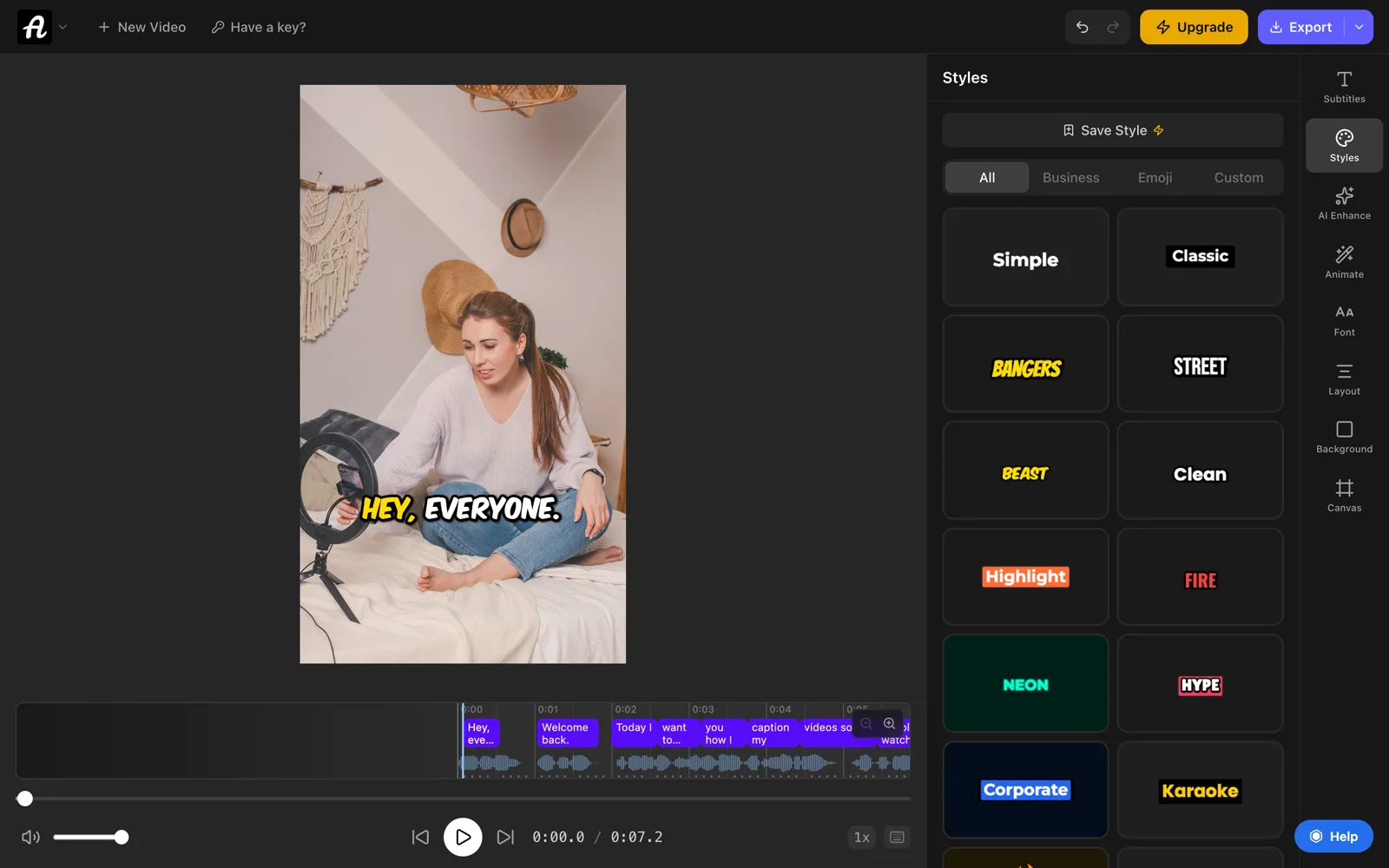
The free plan includes every style and animation and handles videos up to 10 minutes, with exports up to 720p and a small AutoSubtitles watermark. Pro ($9/month) removes the watermark, exports in HD and 4K, and adds SRT and VTT downloads.
Which way should you caption a CapCut video?
| Situation | Best way |
|---|---|
| You have CapCut Pro | CapCut's auto captions |
| You edit on a phone, no Pro | Export from CapCut, then burn captions in |
| You edit on a computer and want to keep editing captions in CapCut | Import an SRT file |
| You already have a script | TXT to SRT, then import it |
| You want animated word-by-word captions without CapCut Pro | Burn them in after export |
| You need a subtitle file for YouTube too | Make an SRT once, use it in both |
Why CapCut auto captions aren't working
- No captions appear, or they're empty. CapCut couldn't hear speech. Loud music is the usual cause: mute the music and sound effects tracks, generate the captions, then turn them back on.
- The words are wrong throughout. The language setting doesn't match the speech. Delete the captions and generate them again with the right language.
- Captions are on the wrong track. On a computer, choose the audio track with the voice when you generate. On a phone, pick the right audio source (the video's sound or your voiceover).
- The button is greyed out or shows a Pro badge. Your account doesn't include auto captions. Use one of the two ways without Pro above.
- It stops at export with an upgrade prompt. The caption track or a caption template is a Pro feature. Delete it, or swap the template for a free one.
- Still nothing. Update CapCut, check your connection (transcription happens online), and try a shorter clip.
Frequently asked questions
How do I add auto captions in CapCut?
Open your project, tap Text and then Auto captions (on a computer, the Captions tab and Auto captions). Pick the spoken language and tap Generate. CapCut transcribes the speech onto a caption track, which you can edit and style before exporting.
Are CapCut auto captions free?
Not on most accounts. CapCut's help center lists auto captions as a Pro feature, and the upgrade prompt usually appears at export. Some free accounts still get a few; CapCut doesn't publish the limit. Without Pro, import an SRT file or burn the captions in after you export.
How do I add captions in CapCut without Pro?
On a computer or the web, import an SRT subtitle file through the Captions menu; the captions become ordinary text you can style. On a phone, export the video without captions and burn them in with a caption tool such as AutoSubtitles, which is free for videos up to 10 minutes.
Can I import an SRT file into CapCut?
Yes, in CapCut on Windows and Mac (through the Captions menu) and in CapCut Online (the Captions tab). The phone app can't import subtitle files. Save the file as UTF-8 so special characters show correctly.
Why is CapCut not generating captions?
Usually CapCut can't hear clear speech: mute background music and generate again. Also check that the language matches the speech, that you picked the track with the voice, and that the app is up to date. If the button shows a Pro badge, your account doesn't include auto captions.
How do I make captions slower in CapCut?
Drag the edges of each caption block on the timeline so it stays on screen longer, or split long captions into shorter ones with Ctrl+B (Cmd+B on a Mac) or the scissors on a phone. Shorter lines that stay up a little longer are easier to read.
Does CapCut have word-by-word captions?
Yes, through its animated caption templates, many of which are marked Pro. Without Pro, you can export the video and add word-by-word highlighted captions with AutoSubtitles, which includes them on the free plan.
Can I export captions from CapCut as an SRT?
CapCut's desktop app has an option to export captions as a subtitle file, but on most accounts it's a paid feature, and the phone app has none. To get an SRT from the video itself, AutoSubtitles Pro downloads SRT, VTT and TXT files from the same captions you edit.